
The worst way to switch calendars is to move everything at once on a Monday morning. The second worst is running two calendars in parallel "for a while" - that while never ends, and the first double booking arrives in week three.
Below is an order that works, and one thing you deliberately should not move.
What not to move
Visit history. This is the one thing people lose the most time on, for zero benefit. Past visits stay where they are - in the documentation system you have to keep anyway. A new schedule should show what is coming, not archive what already happened.
Medical documentation - not in passing. It is a different class of rules, with a different retention period from a schedule. If your documentation is moving system too, move it as a separate step once the schedule is running, and check first that the new system reports medical events to P1.
The order
1. Working hours first, not patients. This is counterintuitive, but an empty calendar with correct hours is useful immediately, and a full patient list with no hours is not useful at all. Enter the week as it really is. Whether and when new patients may book with you is one setting next to the hours - a separate post covers how to choose it.
2. Services with a duration and a buffer. There is one trap worth a minute of attention here: if you need fifteen minutes after a visit for notes and the room, that fifteen minutes has to be entered on the service. Otherwise the calendar books you back to back, and the first delay pushes the whole day.
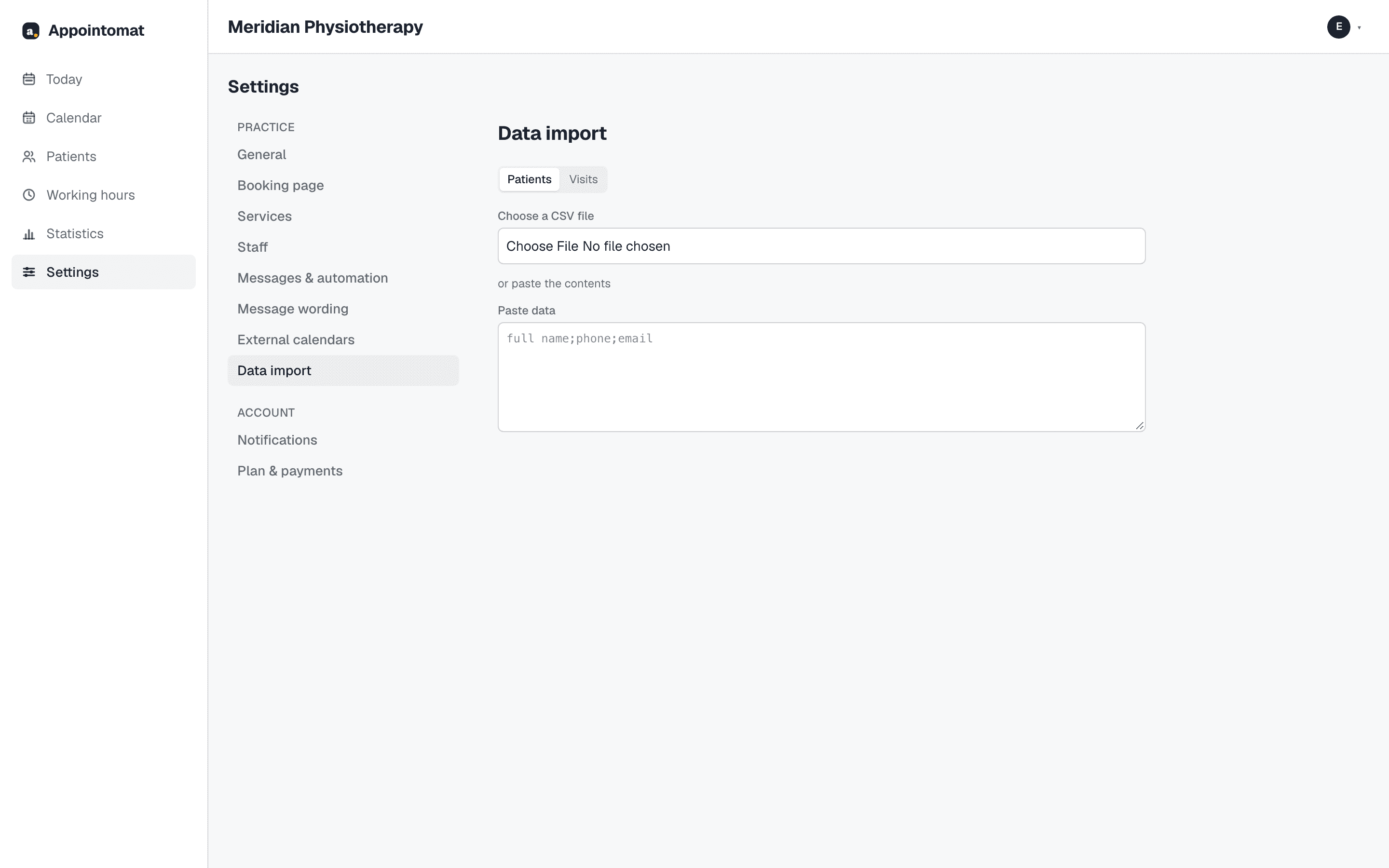
3. Patients from a file. Most systems let you save a patient list as a spreadsheet file (CSV). This is the part not worth retyping by hand - and worth checking your program can do it before you start anything else.
4. Future visits. There are usually twenty to fifty of them. If the old program can save them to a file with a date and a time, you load them the same way as patients. If not, entering them by hand takes an hour, which is still less than reconciling two calendars for a month.
The switch day
Pick one day, and after it stop entering anything into the old calendar. Not "starting next month" - a specific day, ideally one followed by a free afternoon.
From that day on, the old program is only for looking back. If something turns out to be missing from the new one, add it as you go rather than going back to running both.
The other calendar, the private one
This is the thing that breaks a migration most often, and most quietly. Almost everyone has a second calendar - on their phone, with a dentist appointment and a school pickup on it. If the scheduler cannot see it, sooner or later it books a patient into an hour that is already taken.
It is worth checking whether a new scheduler can read busy hours from that calendar, not just write to it. A connection that sends visits to Google Calendar and takes nothing back does not solve this problem, it just moves it.
What to expect
Realistically: an hour and a half to set up, and two weeks to get used to it. The first week you will be checking that reminders went out. The second, you will not.
If any of these steps needs a phone call to someone, that is a bug in the product, not in you.
What this looks like in Appointomat
The "Today" screen has a starter checklist in exactly this order: working hours, services, patients from a file, your own calendar, the booking page. Import is under "Settings → Data import": you upload a file or paste the spreadsheet's contents, say which column is the name, which the phone and which the email, and see a preview before anything is saved. Columns the scheduler does not need - a national ID number, a date of birth, a diagnosis - are not loaded and not stored anywhere. The same tab takes visits with a date and a time. Import sends nobody anything.
Busy hours from a Google or Apple calendar are connected under "Settings → External calendars" by pasting the private iCal address. Appointomat reads it every few minutes and shows those hours as taken, so nothing gets double-booked.